Working as a Team in TextIt
Tips for Successfully Sharing your TextIt Workspace

As your team grows, more people end up working in your TextIt workspace. Some people builds flows, some answer live chats, someone else pulls reports. Giving each person their own login keeps that teamwork organized and secure.
Every paid TextIt workspace includes 10 user logins. They can be set up in under a minute!
Individual logins tie every change to a name, so you always know who edited a flow. Each person can turn on two-factor authentication, and if someone leaves your organization, you simply remove their login. Roles also let you give each person only the access they need, so a volunteer who answers live chats doesn't have the same control as your lead flow builder.
How to invite your teammates
Every paid workspace comes with 10 user logins. To add someone:
-
Click the settings icon at the bottom of the left column.
-
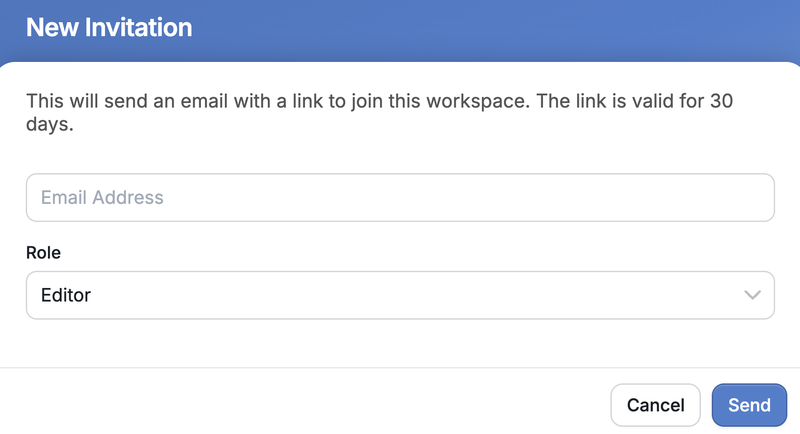
Open the Invitations tab and click New.
-
Enter your teammate's email address and pick a role.
-
Send the invitation. They'll get an email link to set their own password.
Pick the role that fits the job:
| Role | What they can do |
|---|---|
| Administrator | Everything an Editor can do, plus manage users, roles and workspace settings |
| Editor | Build and edit flows, campaigns, triggers and contacts; send messages; start flows; export data |
| Agent | View and reply to tickets (live chats) only |
You can change a role or remove someone at any time from the Users tab. For more detail, see Multi-Login Support in the help center.
Tips for working together in one workspace
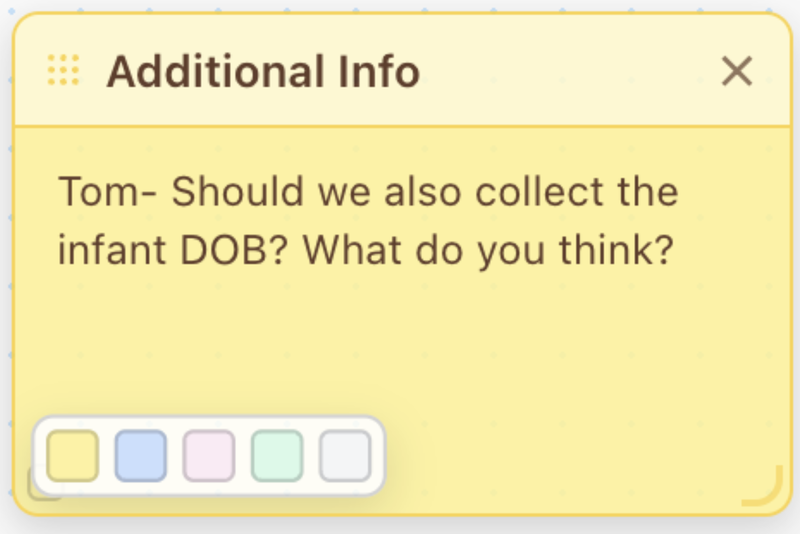
Leave sticky notes in your flows. Add a sticky note to the flow canvas to explain what a tricky split, webhook or message is for. The next teammate who opens the flow gets the context right where they need it, so they don't have to guess or track you down. Notes also work for to-dos, like "Spanish translation still needed here."
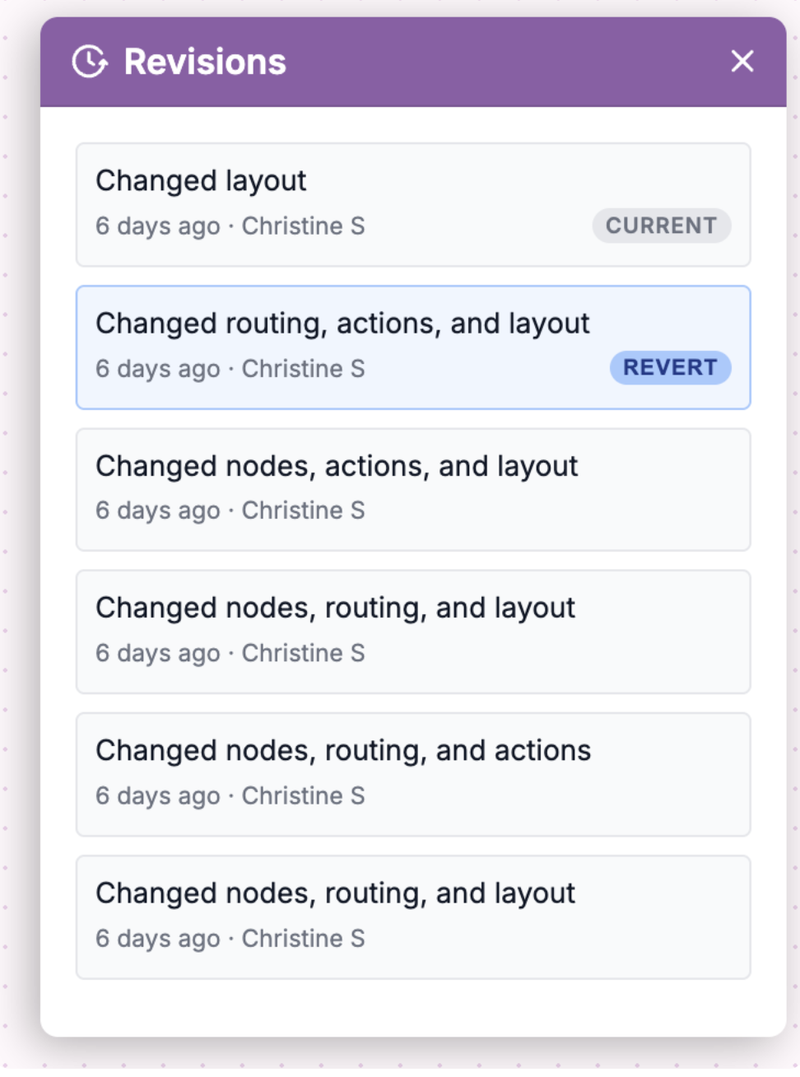
Lean on revision history. Every time a flow is saved, TextIt keeps a revision with the editor's name and the time. When everyone has their own login, you can see exactly who changed what. If an edit goes wrong, open the revision history and restore an earlier version.
Agree on how flows are organized. A shared workspace fills up fast. A few habits keep it easy to find things:
-
Use a naming pattern, like Program – Purpose – Language (for example, Nutrition – Weekly Check-in – ES).
-
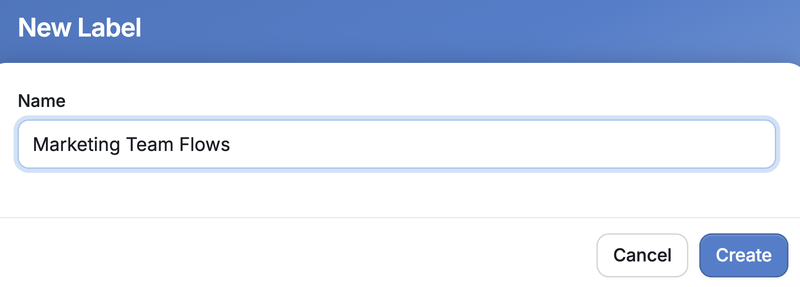
Group flows with labels by program, team or campaign.
- Archive flows you no longer use instead of leaving them in the main list.
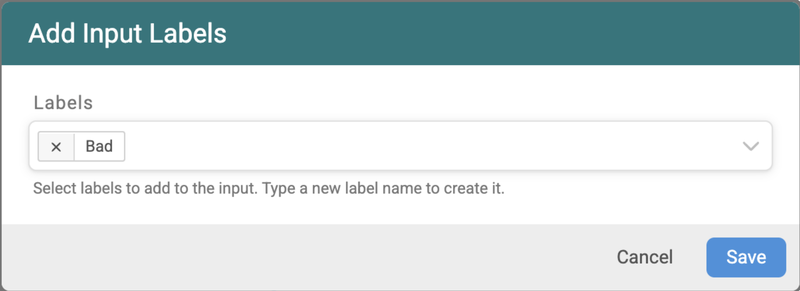
Label incoming messages. Use message labels to organize incoming messages, and make sure the right team member is seeing the right messages. Message labels can be created manually from the message tab, or from within a flow.
Give each person the smallest role they need. Give flow builders Editor access, and give live-chat staff the Agent role.
Have more than one Administrator. Only Administrators can invite new users and change roles. If your only Administrator leaves, especially in a work workspace, nobody left in the office can add people or manage the account. Make at least two people Administrators so someone always has control.
Clean up when people leave. Remove their login from the Users tab on their last day. Nobody else has to change a password, and their past work stays in the revision history.
Bring your team in today
Your paid workspace already includes 10 logins, so put them to use. Take two minutes to invite your team, give everyone the right role and start leaving notes for each other in your flows. Questions? Our support team is happy to help.
More from the blog

Changes Coming to Tickets
We have some exciting new features on the way, but we need to make a couple of small changes to tickets in preparation.

A New Look For Campaigns
Smarter Reminders, Fewer No Shows

Meeting People Where They Are
How Early Alert Uses TextIt to Reach Students & Veterans Before a Crisis